
Problem
This article will cover common troubleshooting steps that can help fix issues with opening or updating SOLIDWORKS files in Composer.
Solution 1: Ensuring a Proper Setup
In order to successfully import SOLIDWORKS files into SOLIDWORKS Composer, you will first need to verify that the proper software configuration is being utilized. In general, this means that the same year version of SOLIDWORKS or the SOLIDWORKS Translator will need to be installed alongside SOLIDWORKS Composer. If you cannot install the full version of SOLIDWORKS, please see our Composer installation documentation for instructions on how to install the SOLIDWORKS Translator in parallel to Composer.
Once you have verified that SOLIDWORKS or the SOLIDWORKS Translator has been installed alongside Composer, you will also want to ensure that Composer is set to use the correct version of SOLIDWORKS for importing. As shown below, this can be set in Composer via File > Preferences > Input > SOLIDWORKS Version.
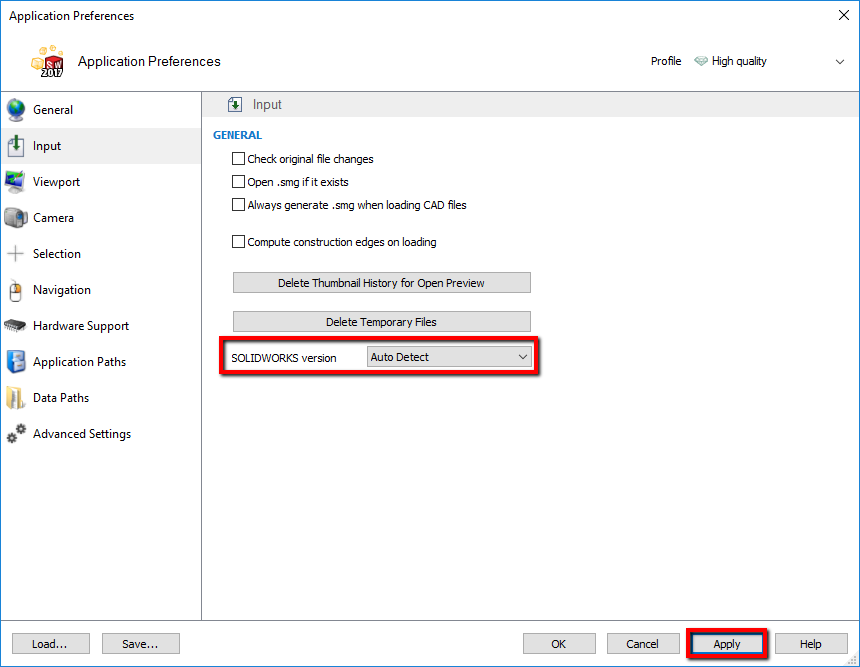
When using the SOLIDWORKS version drop-down menu, it is typically suggested to use the Auto Detect option. However, this menu can also be used to specify the year version that you would like to use when importing SOLIDWORKS files. As mentioned above, you will want to ensure that the same year version of SOLIDWORKS or the SOLIDWORKS Translator is in use.
Solution 2: Incorrect or Missing Geometry
Some of the more common issues with importing files in Composer have to do with missing or invalid geometry. Typically, problems with geometry after an import can be attributed to incorrect settings on the Composer side of things. Please see our Recommended Composer Default Document Properties guide for the settings that are suggested when using Composer.
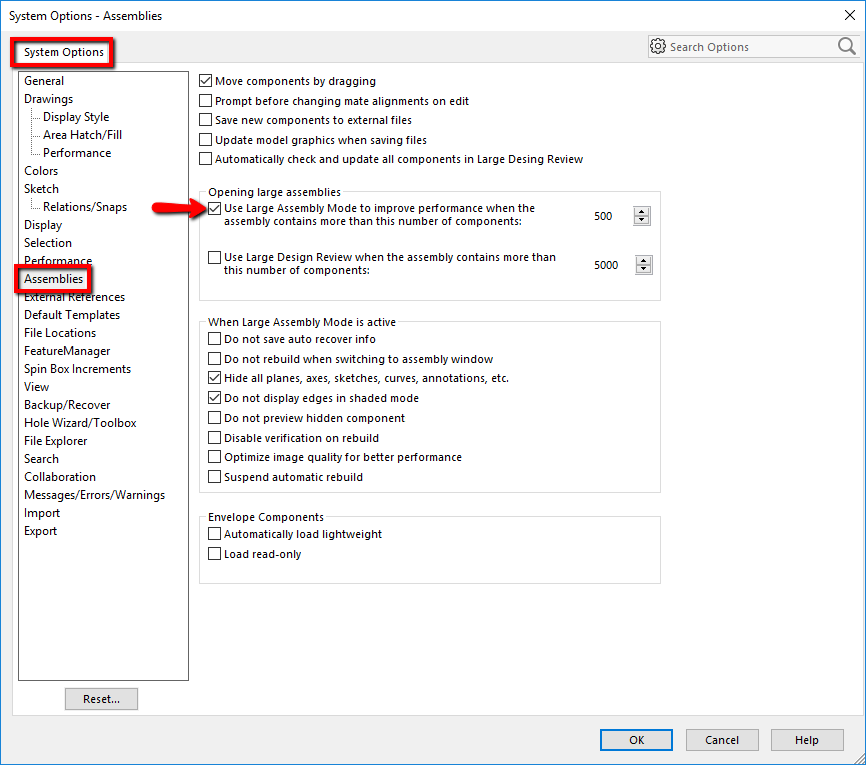
It is also important to note that Composer cannot import SOLIDWORKS geometry that is not fully resolved. If SOLIDWORKS is installed alongside Composer, the easiest method for ensuring that imported files will be fully resolved is to launch SOLIDWORKS > Tools > Options > System Options tab > Assemblies > Opening large assemblies area > Unchecking the option for Use Large Assembly Mode.
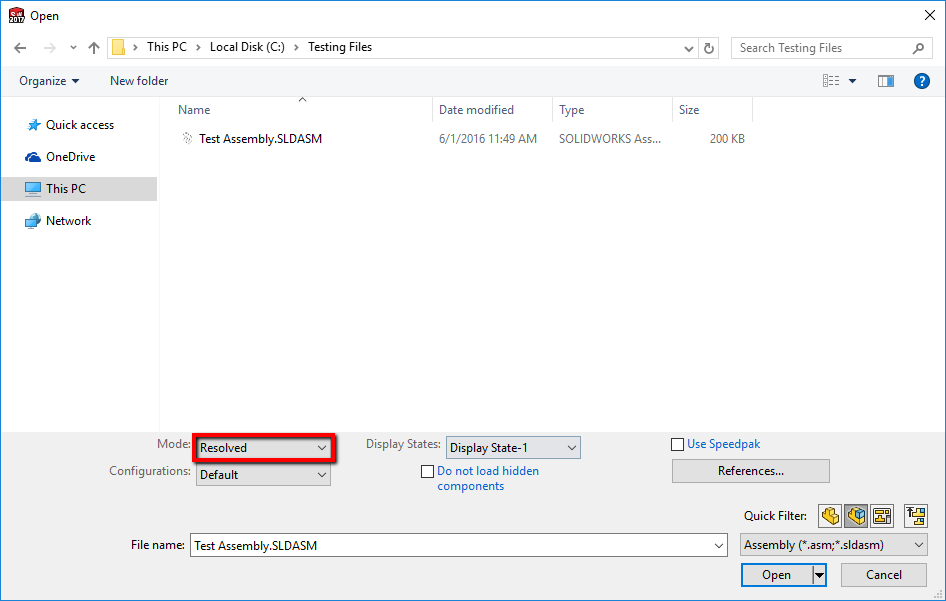
Files can also be opened in a resolved state from within SOLIDWORKS by changing the Mode drop-down menu to Resolved from within the File > Open window. This can be useful if the goal is to save a file in .SMG format from within SOLIDWORKS.
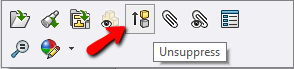
Lastly, as is the case with geometry that is not fully resolved, Composer cannot import SOLIDWORKS geometry that has been suppressed. Anything that is suppressed will need to be unsuppressed from within SOLIDWORKS. This can be accomplished by right-clicking on suppressed geometry and selecting Unsuppress.
Solution 3: Errors When Importing SOLIDWORKS Files Into Composer
This section will go over three specific errors that can occur when attempting to bring files into Composer. Please follow the steps associated with each listed error to troubleshoot them:
- OpenDoc failed Converter error: How to Fix the "OpenDoc Failed" Error When Importing Inventor Files into SOLIDWORKS Composer
- Failed to load plug-in Converter error: How to Fix the SOLIDWORKS Composer "Failed to Load Plug-In" Error
- OEM not found Converter error: How to Resolve the SOLIDWORKS Composer "OEM Not Found" Error
- Composer and SOLIDWORKS Translator Clean Uninstall: There are cases where a complete uninstall of Composer and the SOLIDWORKS Translator may be necessary. Follow the steps in this article to uninstall: How To Uninstall And Remove SOLIDWORKS Products
After going through that article, clean the remaining registry keys below:
2014 and prior:
- HKEY_CURRENT_USER\Software\3DVIASWImporter
- HKEY_CURRENT_USER\Software\Dassault Systemes\3DVIAComposer
- HKEY_LOCAL_MACHINE\Software\Dassault Systemes\3DVIAComposer\Preferences\IOSolidWorksOEMVersion
- HKEY_LOCAL_MACHINE\Software\3DVIASWImporter
- HKEY_LOCAL_MACHINE\Software\Wow6432Node\3DVIASWImporter (64-bit only)
2015 and newer:
- HKEY_CURRENT_USER\Software\3DVIASWImporter
- HKEY_CURRENT_USER\Software\Dassault Systemes\Composer
- HKEY_LOCAL_MACHINE\Software\Dassault Systemes\Composer\Preferences\IOSolidWorksOEMVersion
- HKEY_LOCAL_MACHINE\Software\3DVIASWImporter
- HKEY_LOCAL_MACHINE\Software\Wow6432Node\3DVIASWImporter
After uninstalling the relevant components and removing all associated registry keys, reinstall Composer and the SOLIDWORKS Translator using your SOLIDWORKS media.
For additional support, existing customers can submit a ticket or new customers can contact Hawk Ridge Systems.
Comments
Personally, I had the exact same issue described at :2. Failed to load plug-in Converter error
Following the procedure had solves my problem. I do not need to do a save as and then create a new .smg file which was annoying.
Thank you Hawk Ridge Team for writing this helpful article.
Article is closed for comments.