
Problem
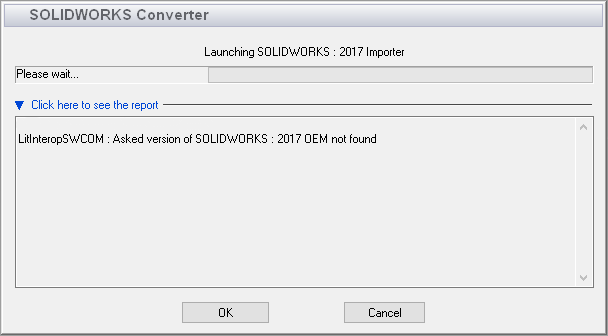
This article goes over how to resolve the error "LitlnlteropSWCOM: Asled version of SOLIDWORKS: 20XX OEM not found" when opening a file in Composer. This specific problem can occur when Composer is looking for an incorrect version of SOLIDWORKS or the SOLIDWORKS Translator.
Solution
As is the case with most Composer import errors, you will first want to ensure that the same-year version of either SOLIDWORKS or the SOLIDWORKS Translator is installed alongside Composer. If this has been confirmed, you will next want to verify that Composer is pointing to the correct year version via File > Preferences > Input > SOLIDWORKS version. The recommended setting for this menu is Auto Detect.
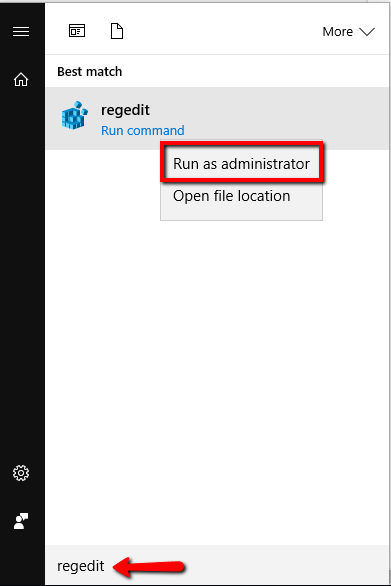
If the setup appears correct and the issue is still present, you will next want to check that your Composer registry is pointing to the correct SOLIDWORKS translation component. To do this, launch the Registry Editor by navigating to your Windows Start Menu, typing regedit into the Windows search field, and right-clicking on the regedit application to select Run as administrator.
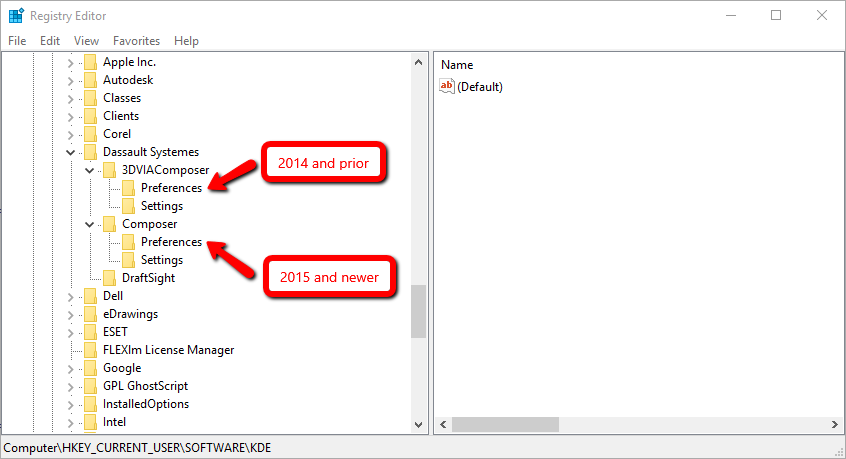
After launching the Registry Editor, navigate to one of the following keys, based on your year version of the software:
- 2014 and prior: HKEY_LOCAL_MACHINE\SOFTWARE\Dassault Systemes\3DVIAComposer\Preferences
- 2015 and newer: HKEY_LOCAL_MACHINE\SOFTWARE\Dassault Systemes\Composer\Preferences
After selecting the Preferences key that is associated with your version of the software, look for a string value named IOSolidWorksOEMVersion.
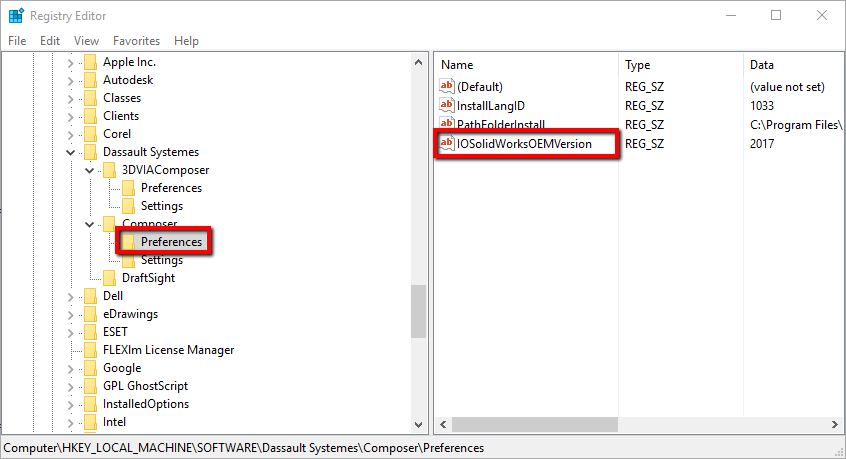
In this case, there are two potential scenarios for troubleshooting. If you have SOLIDWORKS installed alongside Composer, delete the IOSolidWorksOEMVersion string value if it is present.
If you have the SOLIDWORKS Translator installed alongside Composer, make sure that the value listed in the Data column matches your year version of Composer. If it does not, right-click on the IOSolidWorksOEMVersion string value, select Modify, and change the number in the Value data field to match your year version of Composer, then click OK.
After performing the steps listed above, test the Composer import again.
For additional support, existing customers can submit a ticket or new customers can contact Hawk Ridge Systems.
Comments
Article is closed for comments.