
Problem
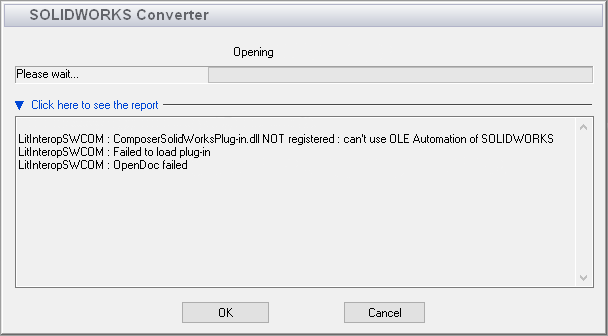
This article goes over how to resolve the error "Failed to load plug-in" when opening a file in Composer. This problem can occur when a specific Composer system file is not registered correctly.
Solution
To resolve this issue, we will need to register the DLL file shown in the error using the Windows Command Prompt.
- The first step will be to locate the file in question. This file will have a different name, based on what version of Composer is installed. For Composer 2014 and prior, this file is named 3dviasolidworksplug-in.dll. In Composer 2015 and newer, the file is titled composersolidworksplug-in.dll. The default path and name for this file are listed below, based on these two version categories:
- Composer 2014 and prior: C:\Program Files\SOLIDWORKS Corp\SolidWorks Composer\Plugins\solidworks\3dviasolidworksplug-in.dll
- Composer 2015 and newer: C:\Program Files\SOLIDWORKS Corp\SOLIDWORKS Composer\Plugins\solidworks\composersolidworksplug-in.dll
- In the Windows Search bar, type "CMD" to bring up Command Prompt and right-click on it to select the option to run it as administrator.
- In Command Prompt, type regsvr32 followed by the full path to the file mentioned above, in quotations. Based on the default locations, the syntax that should appear in the Command Prompt will be:
-
Composer 2014 and prior: regsvr32 "C:\Program Files\SOLIDWORKS Corp\SolidWorks Composer\Plugins\solidworks\3dviasolidworksplug-in.dll"

-
Composer 2015 and newer: regsvr32 "C:\Program Files\SOLIDWORKS Corp\SOLIDWORKS Composer\Plugins\solidworks\composersolidworksplug-in.dll"

- Once the correct syntax has been typed into the Command Prompt, press Enter. You should receive a message that the registration has succeeded. After walking through these steps, attempt to import into Composer again.
For additional support, existing customers can submit a ticket or new customers can contact Hawk Ridge Systems.
Comments
Article is closed for comments.