
Problem
When launching the SOLIDWORKS Activation Manager to activate SOLIDWORKS, some users have reported running into the error " An activation prerequisite is missing, please reinstall (68)".
This error can occur if the Activation Manager files were not installed correctly.
Solution 1: Repair SOLIDWORKS
The first recommendation to resolve this error is to repair SOLIDWORKS, as this article goes over:
How to Repair SOLIDWORKS – Hawk Ridge Systems
Solution 2: Reinstall the necessary Activation Manager Files
If the SOLIDWORKS Repair did not resolve the error, follow the steps below to reinstall the necessary Activation Manager Files.
- In Windows File Explorer, navigate to the following path:
C:\Program Files\SOLIDWORKS Corp\SOLIDWORKS\setup\i386.
Note: The C:\Program Files\SOLIDWORKS Corp\SOLIDWORKS\ portion of this directory is the default SOLIDWORKS install path, so this may be different based on your setup. -
In this folder, confirm the existence of the files named "swlicservinst.exe" and "swinstactsvc.exe", as shown below and take note of their location
-
In the Windows Start Menu, type "cmd" without quotations marks into the Windows search field, and right-click on the Command Prompt application to select "Run as administrator".
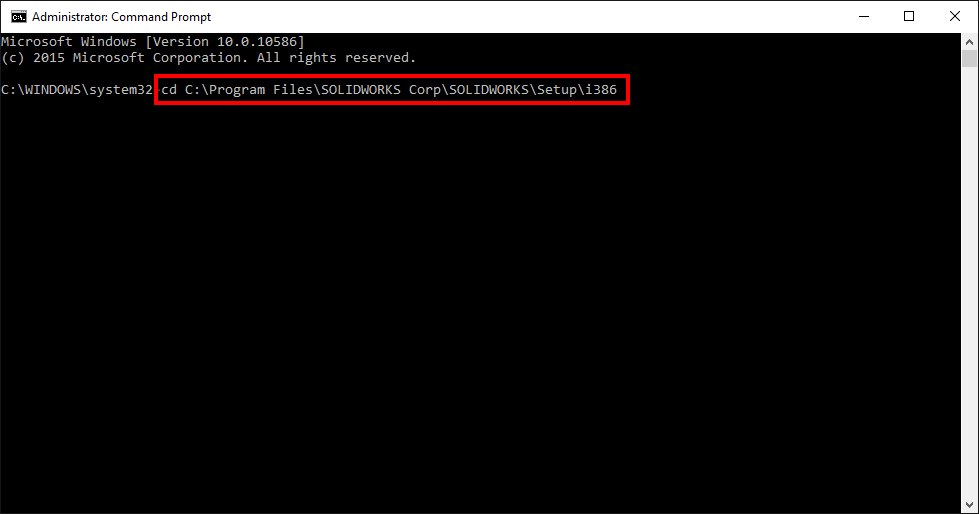
- Type 'cd c:\program files\solidworks corp\solidworks\setup\i386' to change to the [SolidWorks install directory]\setup\i386 folder. If SOLIDWORKS is not installed in the default location, update the path as necessary to the path in step 2.
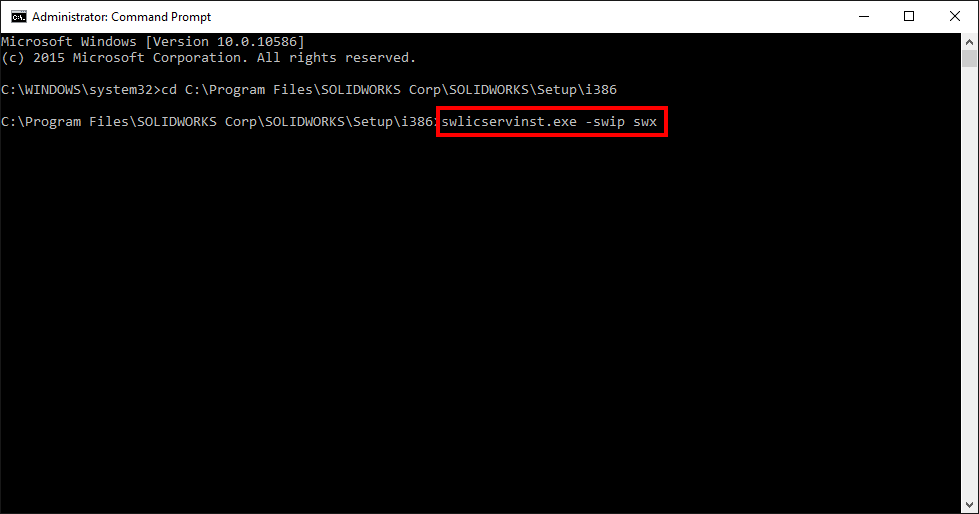
- Type swlicservinst.exe -swip swx and press Enter.
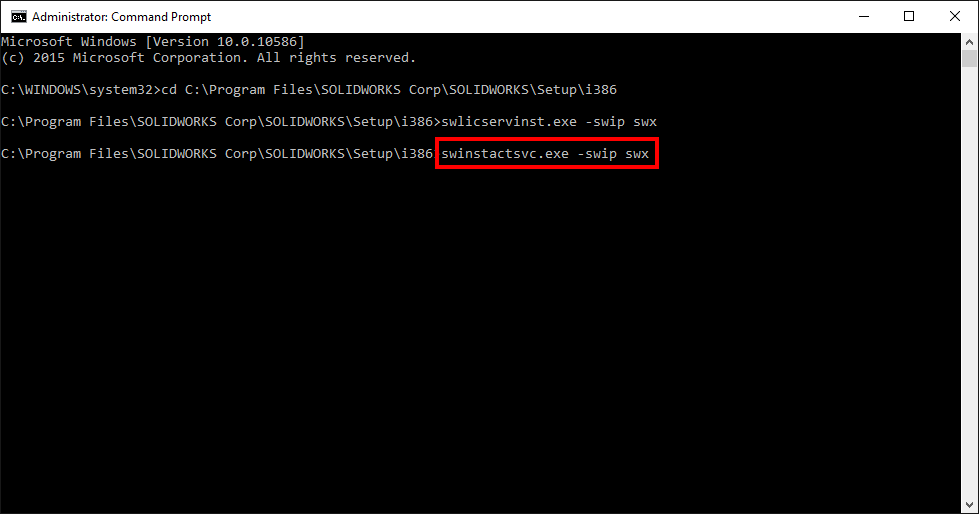
- Type swinstactsvc.exe -swip swx and press Enter.
- Launch SOLIDWORKS to check if the solution was successful.
For additional support, existing customers can submit a ticket or new customers can contact Hawk Ridge Systems.
Comments
Article is closed for comments.