
Problem
When a file is corrupted, SolidWorks will usually give an error message:
"SolidWorks encountered an error opening the document".
If this is happening in an assembly, the source of the corruption can be the assembly itself or one of the components within that assembly.
Solution
The steps below can help narrow down the source of corruption:
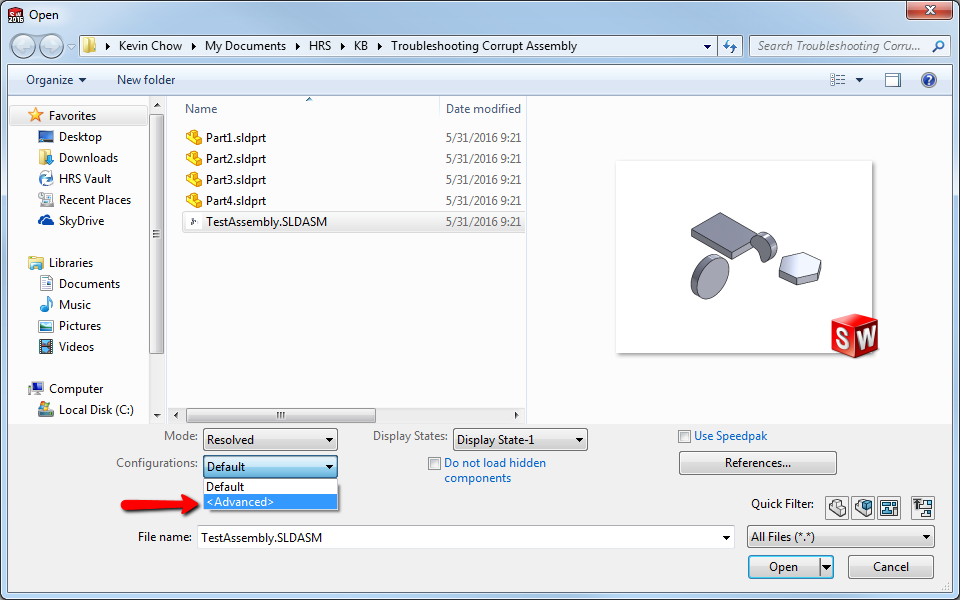
- Go to File >Open and select the assembly, but do not open the file yet
- Under the configurations dropdown, select <Advanced> and click Open
-
In the Configure Document dialogue box, select "New configuration showing assembly structure only" and enter a configuration name
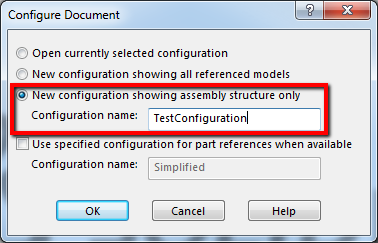
- Click OK, and the entire assembly will open up with all the components suppressed
- If the error message mentioned above appears immediately, there is likely an issue with the assembly file itself, and it needs to be remade. If not, please continue with the steps below
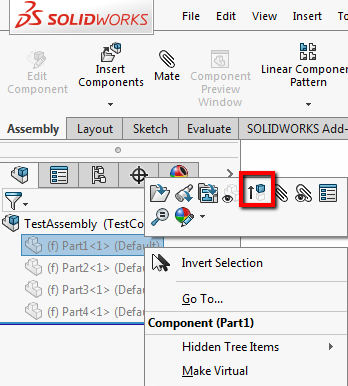
- Unsuppress components one at a time, going down the list. If the error message appears after unsuppressing a particular component, the corruption is likely related to that file
- If that particular component opens up by itself, without any issue, delete and reinsert it into the assembly
- If that component opens by itself with an error, it should be remade or submitted for review with technical support
For additional support, existing customers can submit a ticket or new customers can contact Hawk Ridge Systems.
Comments
Also worth mentioning under this title is when an assembly has been diagnosed as corrupt without an error message. These can be issues where the assembly is not working correctly and there is no usage issue that can be seen. In such a case, the solution may be to do the following:
1. Open a new "blank" assembly
2. Insert the problematic assembly as a sub-assembly into this new assembly
3. Right-click on the sub-assembly and select Dissolve Sub-Assembly
Article is closed for comments.