
Problem
Do Properties need to be managed in Custom Tools to use Batch Print or Convert Tools?
Solution
No. Users can create a new empty profile and set up batch conversion rules or batch print rules without configuring any model or drawing properties. Follow these steps to create a new empty profile:
- Launch the CustomTools Administration tool.
- Select the database and click "Log In". Note: The default Password for Admin is blank.
- Under the Database Name, select "Profiles"
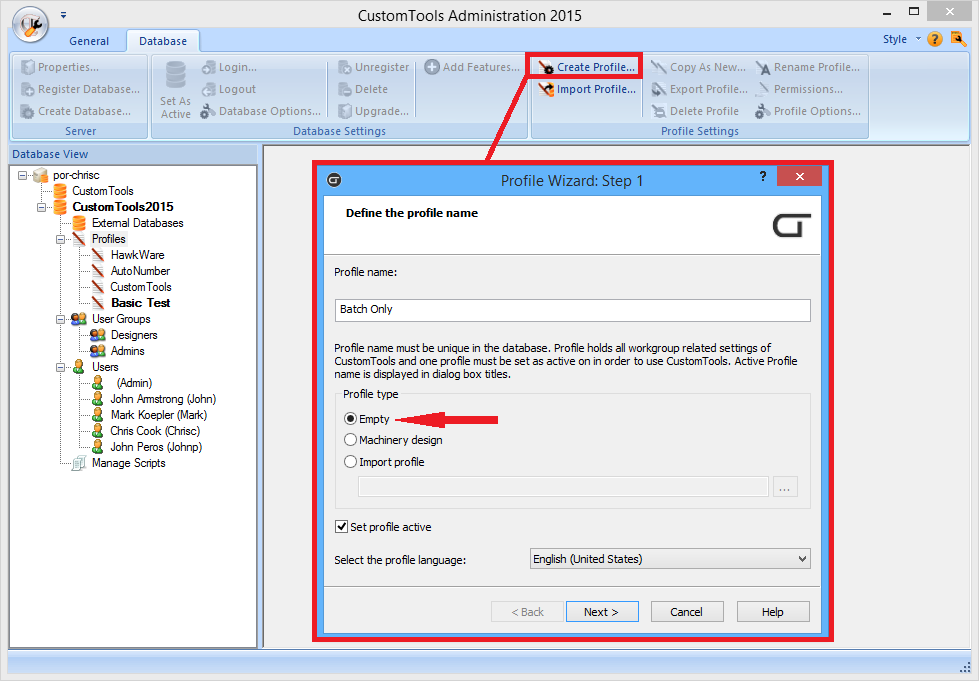
- Click "Create Profile..." from the ribbon menu, or from the right-click menu.
- In the Wizard that appears, click "Next".
- Enter a name for the new profile
- Select "Empty" for the Profile Type
- Leave "Set profile active" checked
- Click "Next"
- Click "Finish"
- Click "Close"
We are now ready to set up your batch conversion rules and batch print profiles.
Notes
- While we can edit most of the profile from the Administration tool by selecting "Profile Options...", we cannot create or edit batch conversion rules. These only appear in the Profile Options initiated from within SOLIDWORKS.
- We can run the batch operations from open documents in SOLIDWORKS, but we must import the existing SOLIDWORKS data into the CustomTools database to leverage the batch operations from the CustomTools Search.
- Since we are not managing any properties in CustomTools, the search will only search file names of imported SOLIDWORKS data.
If we choose to run CustomTools this way, we will want to disable the prompts that appear when users try to save their SOLIDWORKS documents. Follow these instructions to disable it:
- Open SOLIDWORKS and turn on the CustomTools add-in (if it isn't already).
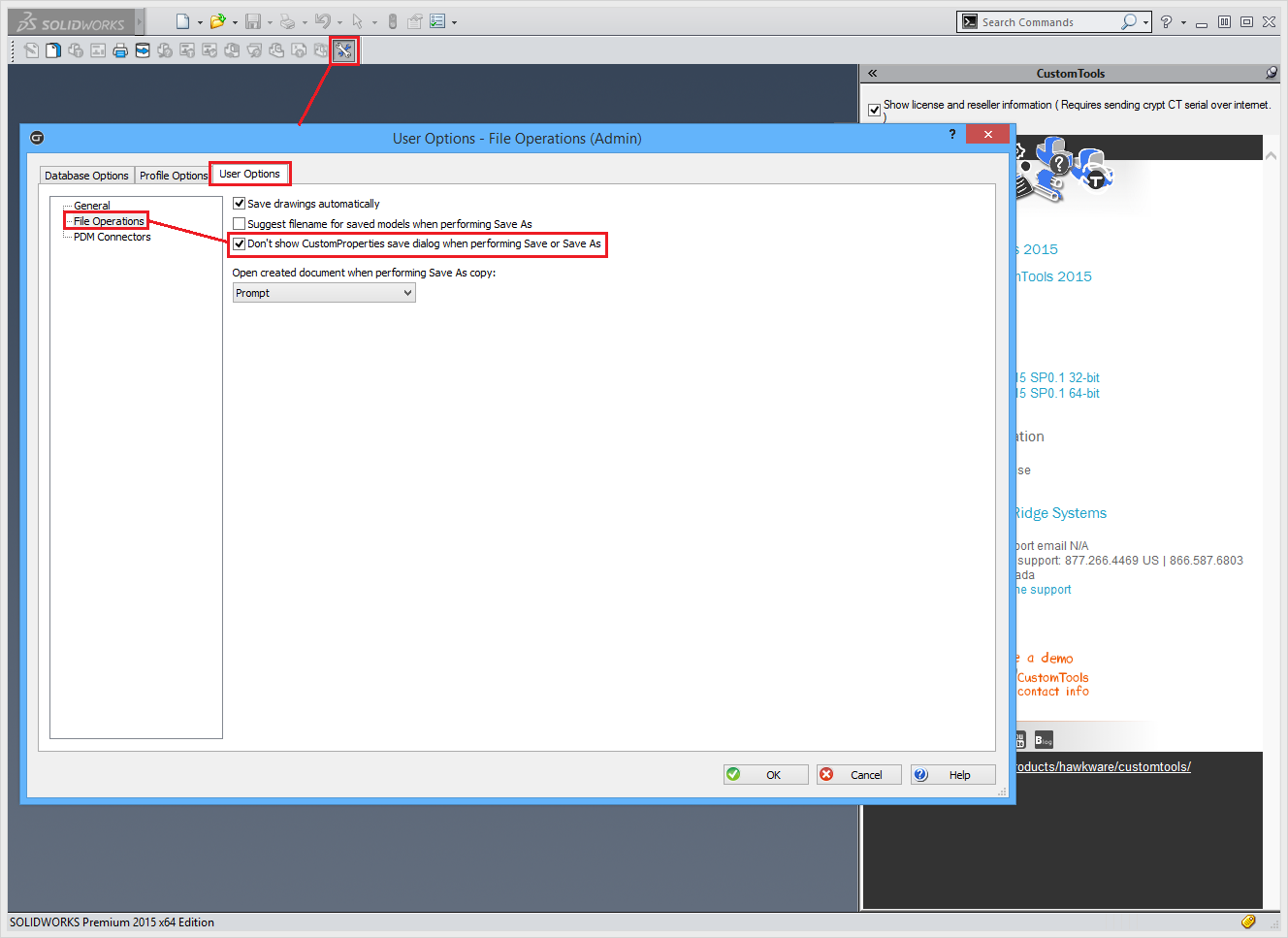
- From the CustomTools toolbar, select "Profile Options..."
- Select the "User Options" tab
- Select the "File Operations" category
- Check the box for "Don't show CustomProperties save dialog when performing Save or Save As"
- Click "OK"
For additional support, existing customers can submit a ticket or new customers can contact Hawk Ridge Systems.
Comments
Article is closed for comments.