
Problem
When upgrading SOLIDWORKS PDM to a newer version, it is often necessary to upgrade the SQL version if it does not meet the system requirements. PDM Professional will require SQL Standard or SQL Enterprise, while PDM Standard will only run on an instance of SQL Express. This article covers upgrading SQL.
Before attempting to upgrade any PDM Server components, please be sure to create backups of your data.
Solution Step 1: Download SQL
The first step to updating SQL is to confirm compatibility with the Windows Server Operating System. This site has more information: SQL Server in Windows operating system - SQL Server | Microsoft Learn
When upgrading SQL Standard, the paid version that is needed for PDM Professional, the installation files are downloaded from the Microsoft Admin Center.
Below are the Download Links for SQL Express for PDM Standard:
SQL 2016 SP3:
KB3177534 - How to obtain the latest service pack for SQL Server 2016 (microsoft.com)
SQL 2019:
Download Microsoft® SQL Server® 2019 Express from Official Microsoft Download Center
SQL 2019 latest cumulative update (this is needed after upgrading to SQL 2019):
SQL 2022:
Download Microsoft® SQL Server® 2022 Express from Official Microsoft Download Center
SQL 2025:
Download Microsoft® SQL Server® 2025 Express from Official Microsoft Download Center
Solution Step 2: Upgrade SQL
After downloading the executable, run it with administrator rights
In the window that comes up, select "Custom" for Installation type
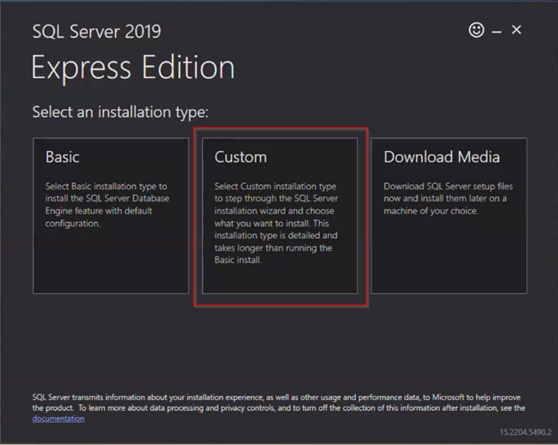
-
After selecting Custom, select "Install"
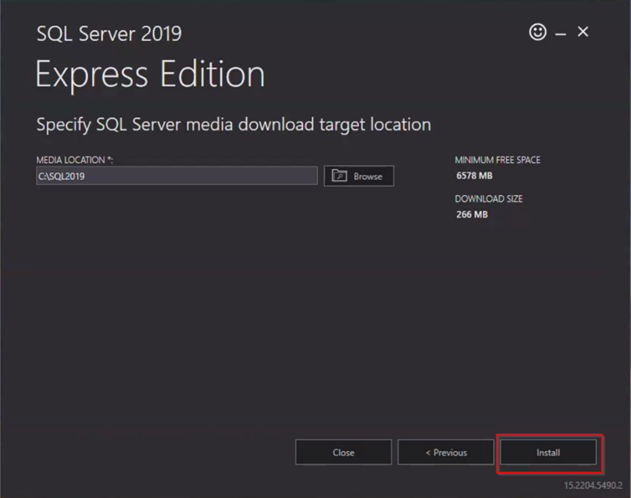
-
Under the Installation section of the SQL Server Installation Center, select "Upgrade from a previous version of SQL Server"
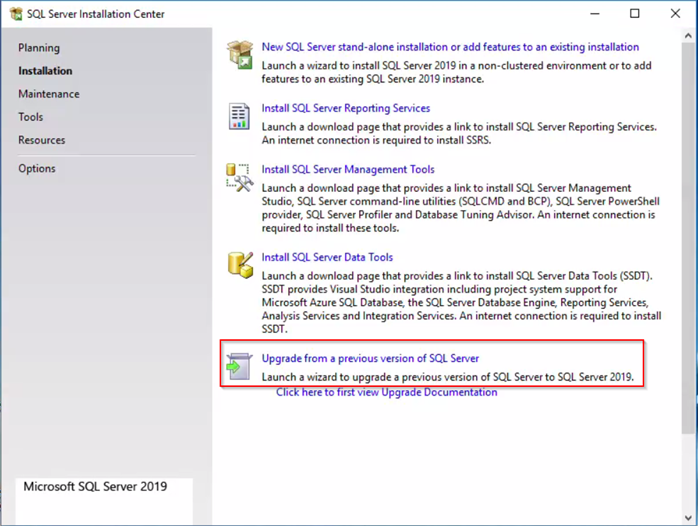
-
Accept the license agreements and click "Next"
-
Select the instance on which PDM exists and then click "Next"
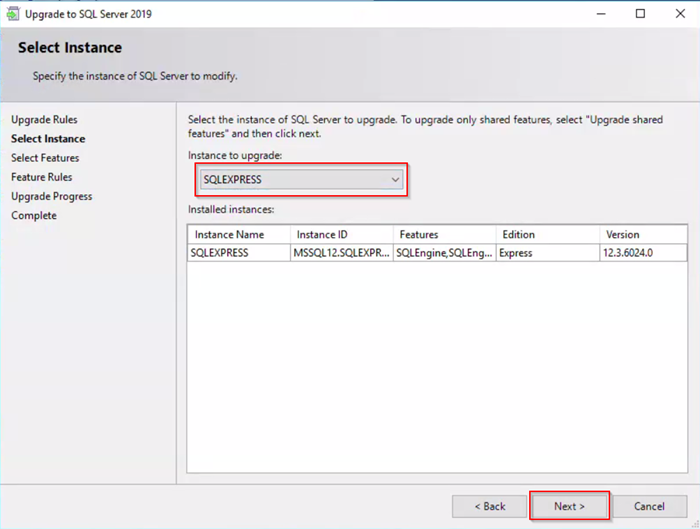
-
If we have any features, we will select them in the options prior to the next screenshot. If we do not have any features, it will automatically send us to the last step. This process can take a fair amount of time, depending on the size of the database.
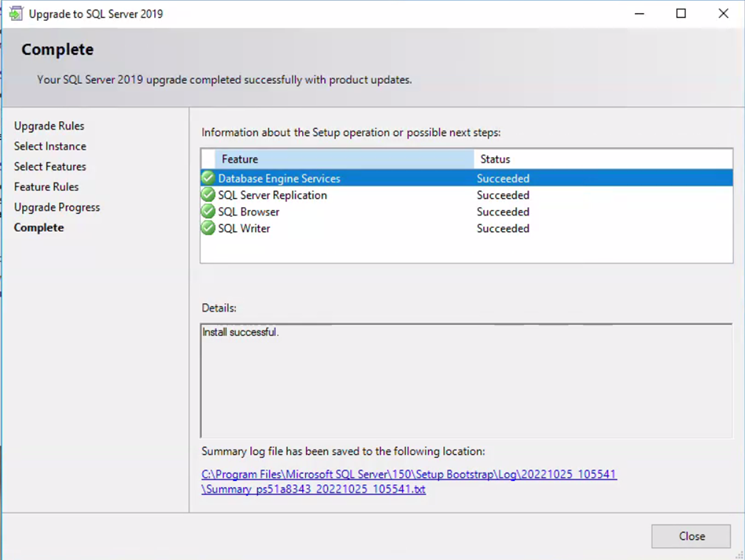
After completion, restart your server
-
If the server has not been upgraded with the SQL Cumulative Update yet, there will be an error when trying to upgrade the PDM database.
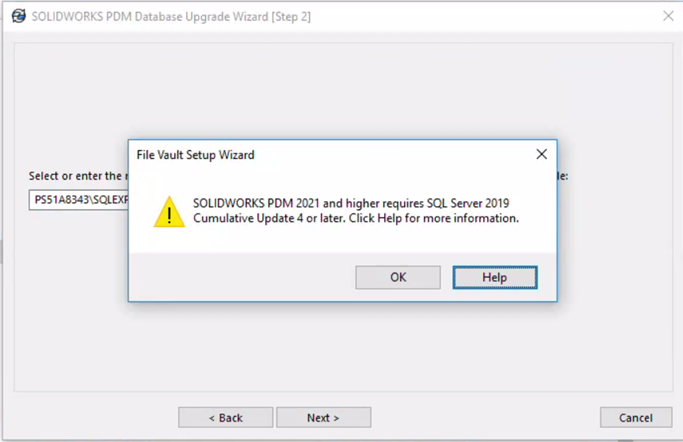
-
Please download the latest Cumulative Update from the Microsoft website. Run the executable, accept the license agreement, and then select "Next"
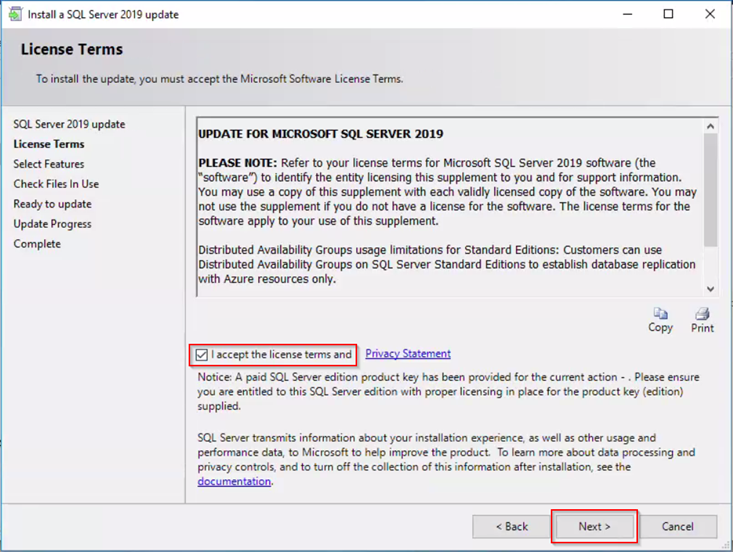
-
Select all existing PDM Instances, then click "Next"
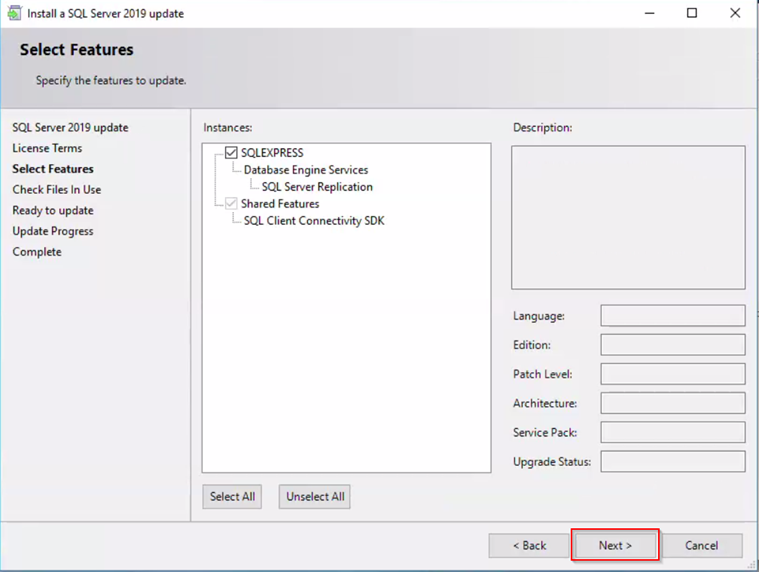
-
Select "Next"
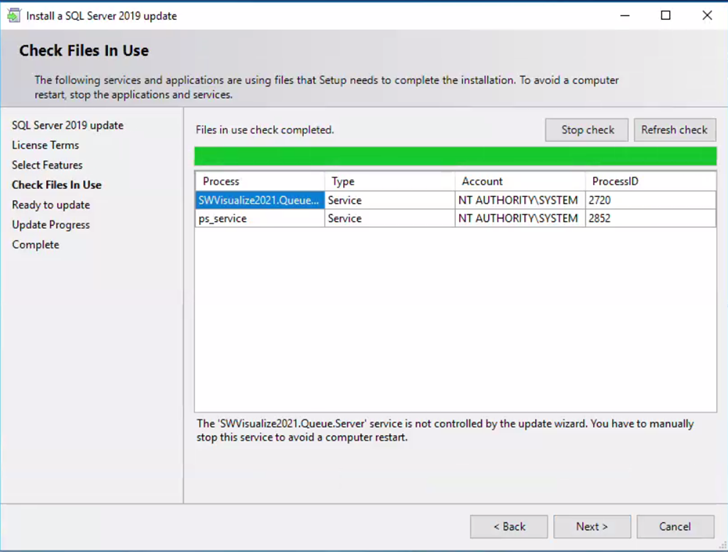
-
Select "Update"
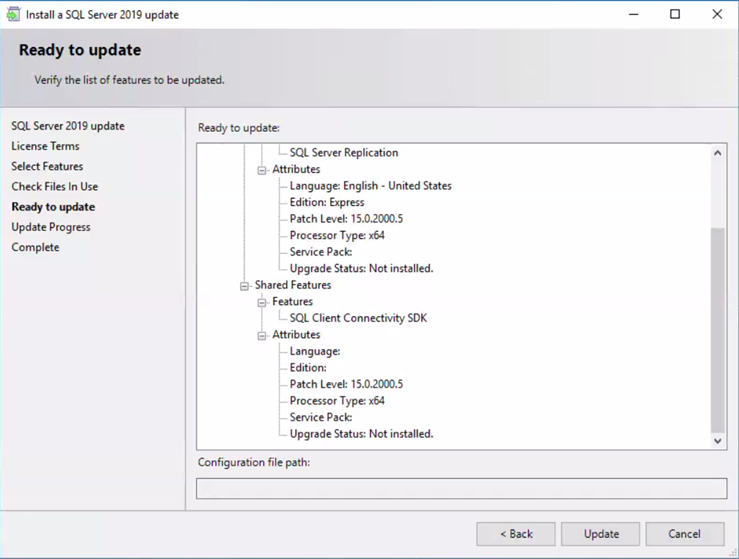
-
Restart the server after the cumulative update
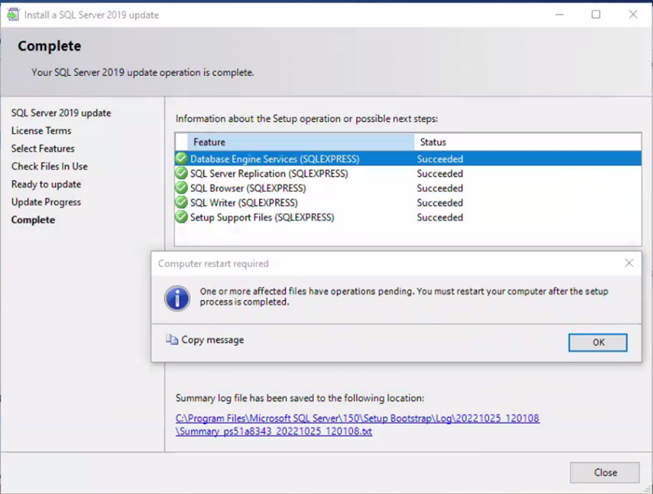
14. After you restart your server, the SQL upgrade is complete.
Solution Step 3: Upgrade the SOLIDWORKS PDM Vault Database
To finish the database upgrade, navigate to the SOLIDWORKS installation media and run the Upgrade.exe located in SOLIDWORKS 20XX SP0\SOLIDWORKS 202X SP0X\SWPDMServer\Upgrade. Follow the steps below:
Open the upgrade tool and run it
Select the Vault and click "Next"
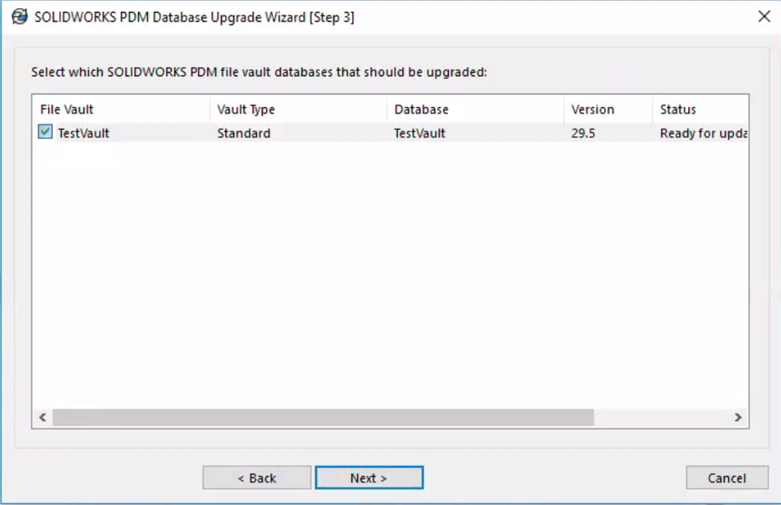
-
Select "Next"
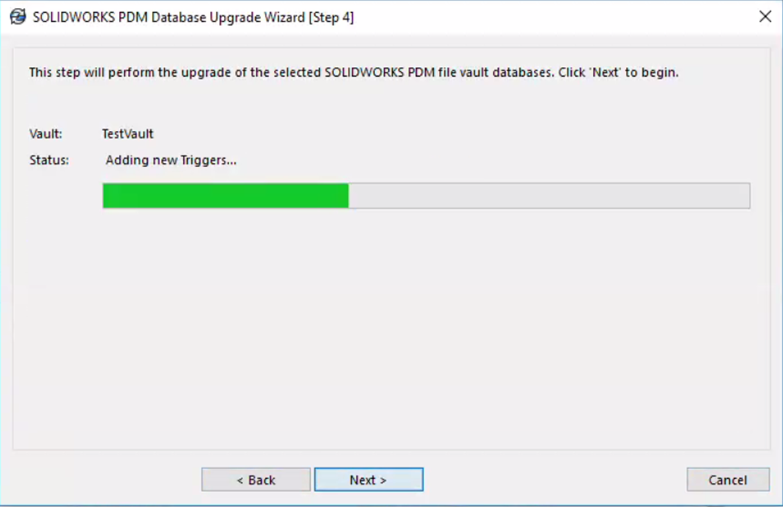
-
Select "Finish"
After this, we should now have a working PDM client and server with all compatible components.
For additional support, existing customers can submit a ticket or new customers can contact Hawk Ridge Systems.
Comments
Article is closed for comments.