
Problem
When logging into the PDM Vault View on a client machine, sometimes an error can occur 'could not access item in database. The error message may provide the vault name and the PDM server name. Attempts to reboot the machine or use a different network connection method sometimes do not resolve the issue.
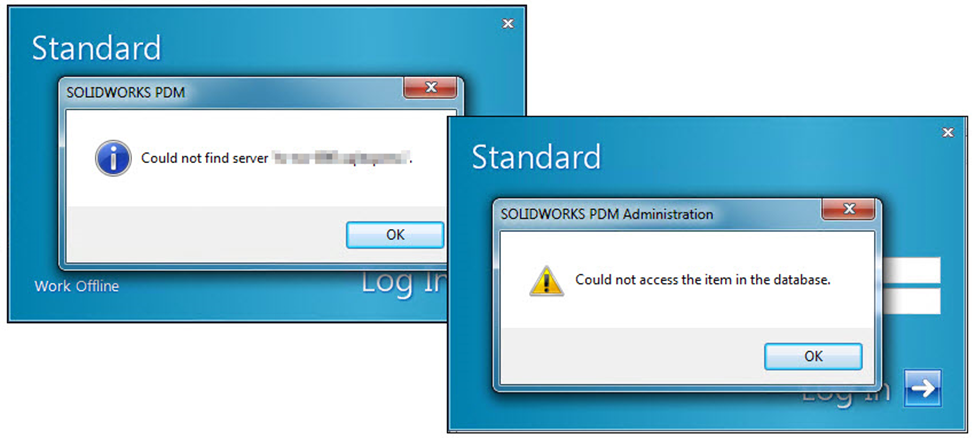
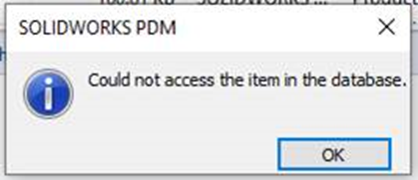
When viewing the PDM client log from the admin tool, there are repeated connection error entries. This generally indicates that the PDM Client machine is unable to communicate with the SQL Server properly. The logs will also provide the hostname of the PDM Server and Database it is connecting to.

Solution Step 1: Create ODBC Connection
Creating an ODBC connection on your PDM Client machine will resolve this issue. Creating this connection is a manual handshake between the client machine and the database server. This has also been useful for clients who work remotely and, in some cases, helps with performance.
- You will need the "sa" password for your database. You can test if it is the correct password by logging into Microsoft SQL Server Management Studio (SSMS).
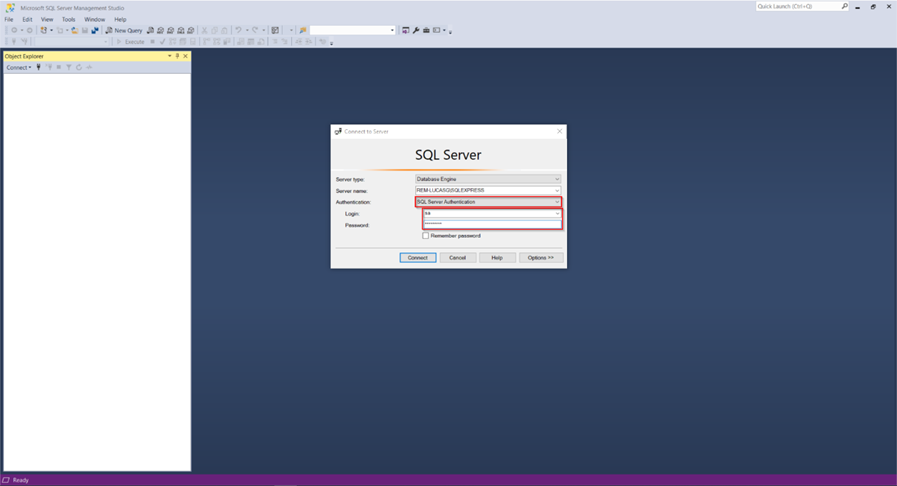
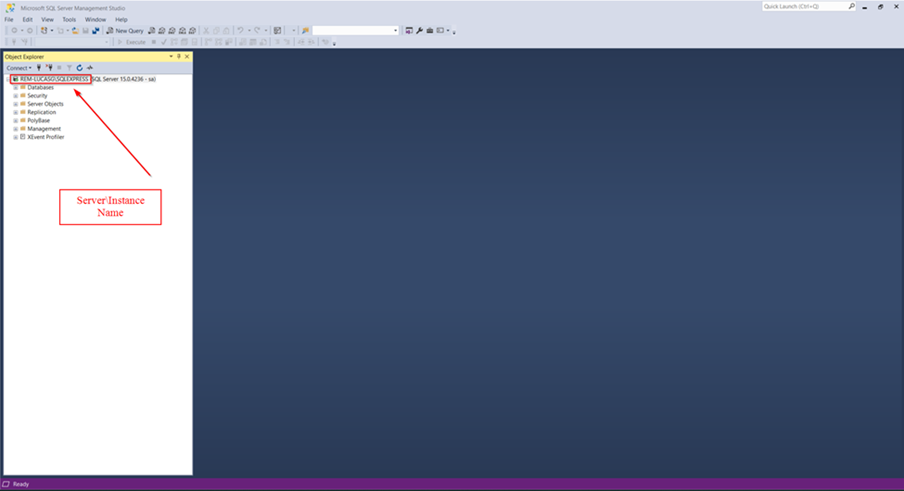
- Server\Instance Name. This can be found in the Microsoft SQL Server Management Studio (SSMS).
- If you are using SQL Express (PDM Standard), you will need to know which ports SQL Express has dynamically used. You can find these in the SQL Server Configuration Manager. If you do not change this port to 1433 or 1434, you will need to open this port in your server’s firewall.
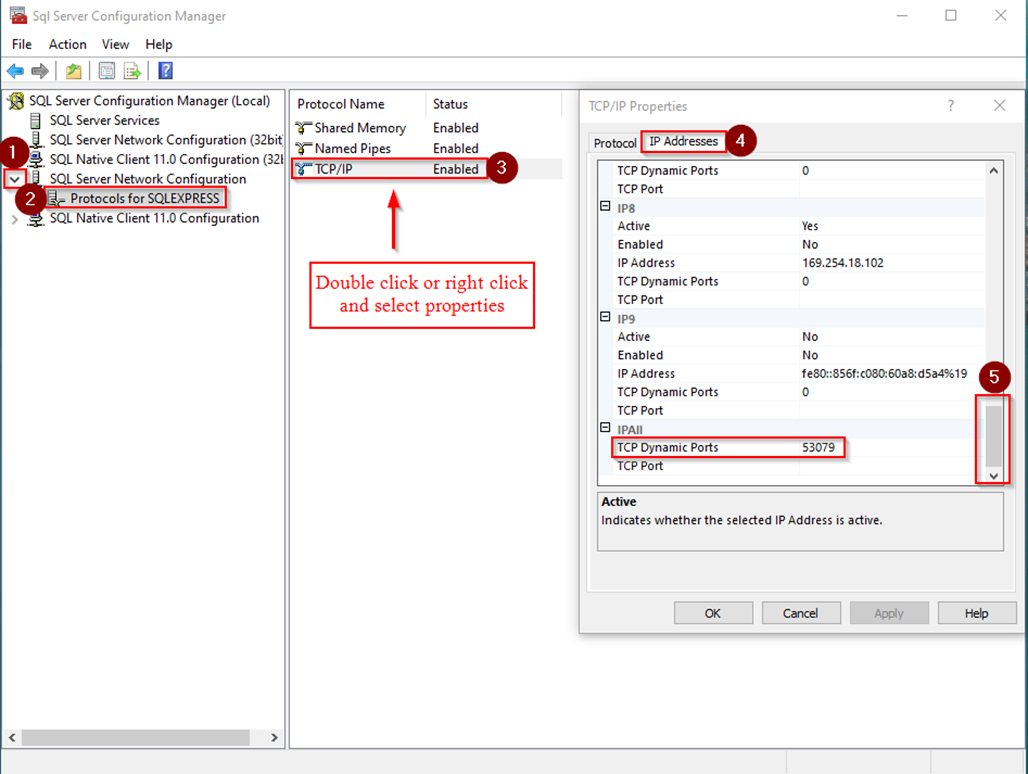
Solution Step 2: Setting up the ODBC Connection on the Client
Go to the client machine experiencing the issue and open ODBC Data Sources (64-bit). Navigate to the Windows Control Panel>System and Security>Windows Tools (on Windows 11 machines).
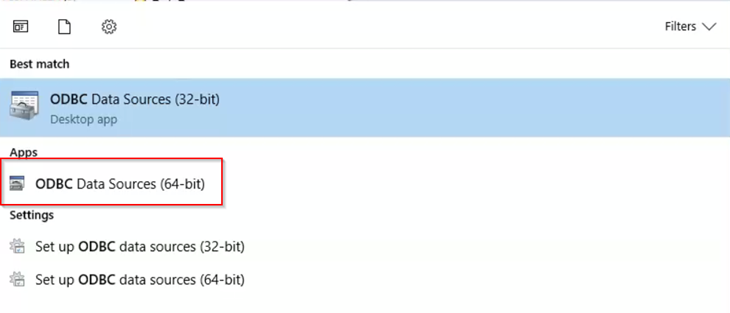
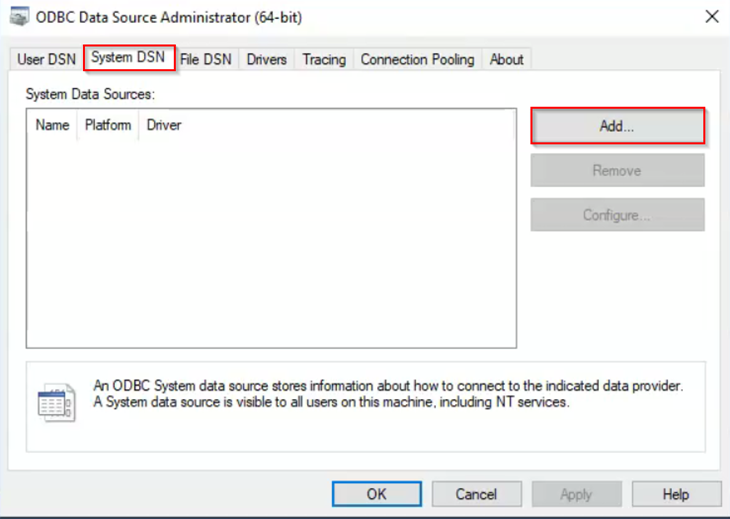
2. After opening ODBC 64-bit, navigate to the System DSN tab and add a source.
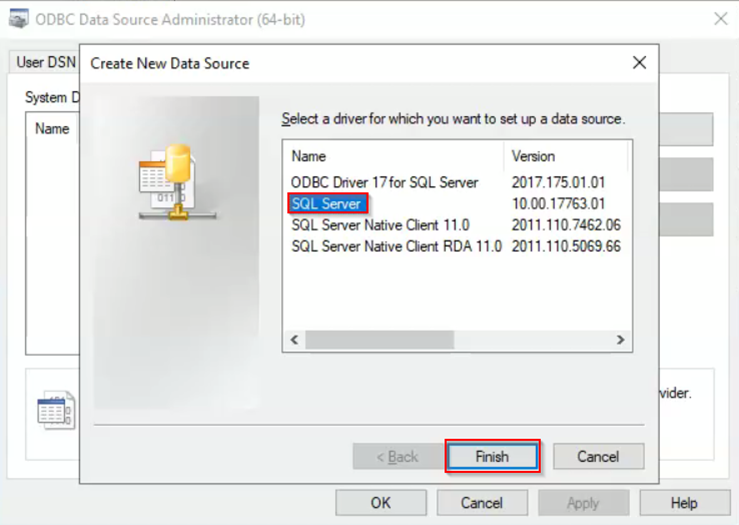
3. Select SQL Server for the data source and hit the 'Finish' button.
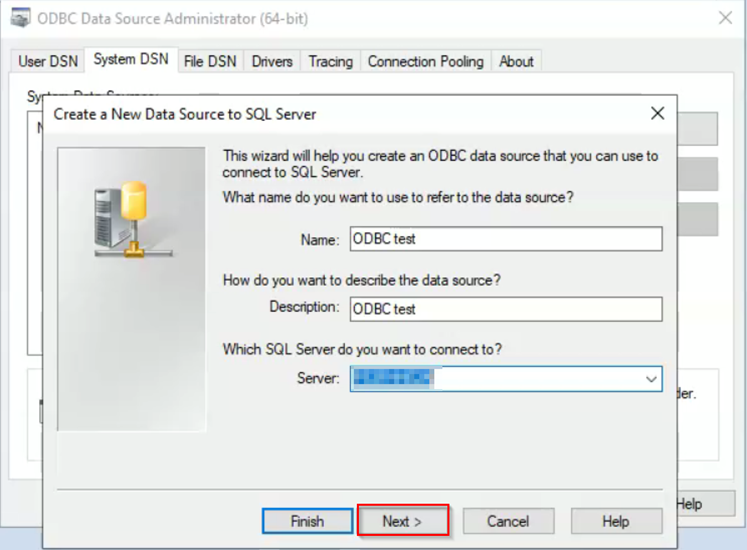
4. Enter a name and description for the data source you are creating. Select or enter the name of your server hosting your database. This is the information found from step 2 when logging into the Microsoft SSMS tool.
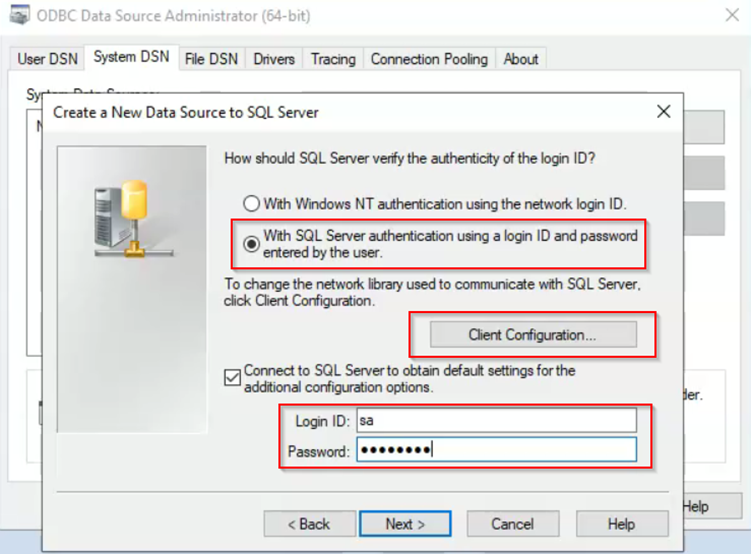
5. Select the SQL server authentication radio button. Provide the SQL Server login credentials by typing in sa for the Login ID and the corresponding password. Before clicking the 'Next' button, do not forget to click the 'Client Configuration' button and verify if a static or dynamic communication port is used for the SQL Server.
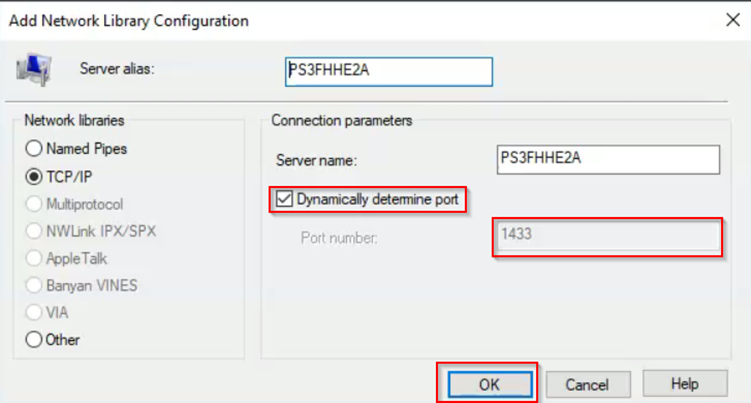
6. After selecting Client Configuration and before selecting Next, add the dynamic port from the SQL Server Configuration Manager. This information is found in step 3 of the above required information. In order to add your own dynamic port, you will first need to uncheck the 'Dynamically determine port'. If you do not need to change this information, do not uncheck that option.
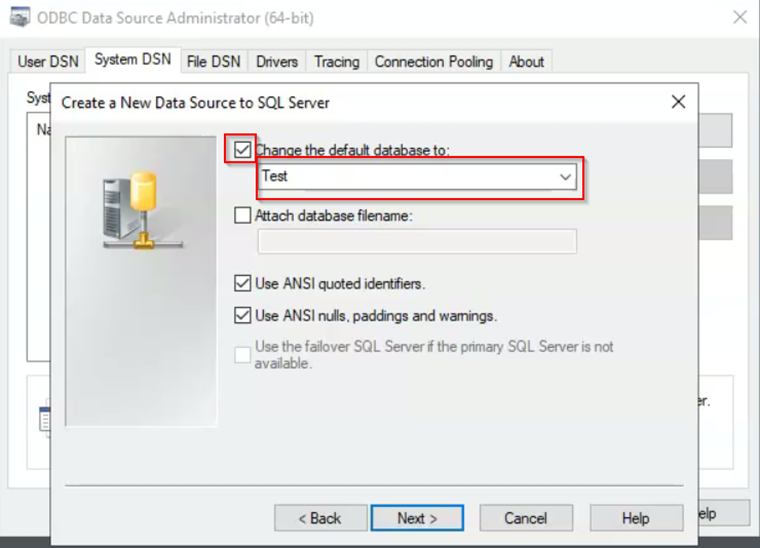
7. Select 'Change the default database to' and select your vault name. Then, click Next.
8. On the next page, we do not have to change anything, so select Finish.
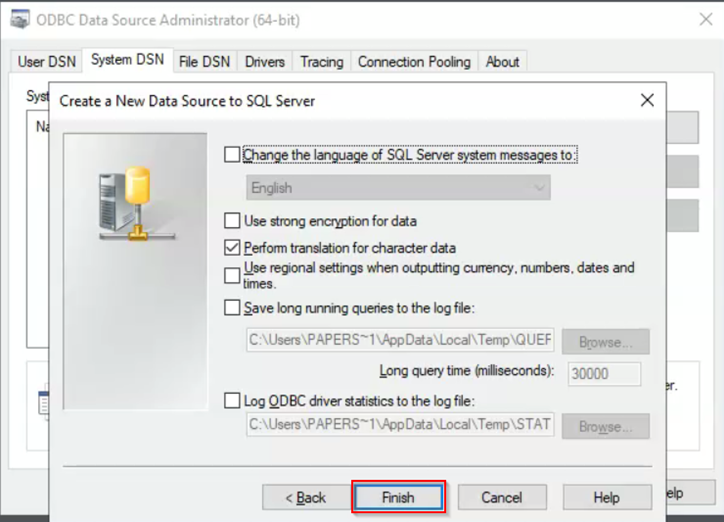
9. Select the Test Data Source button in the new window.
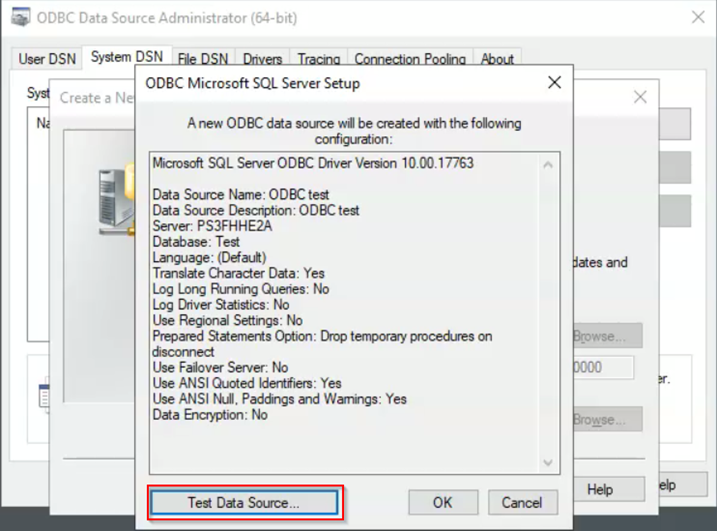
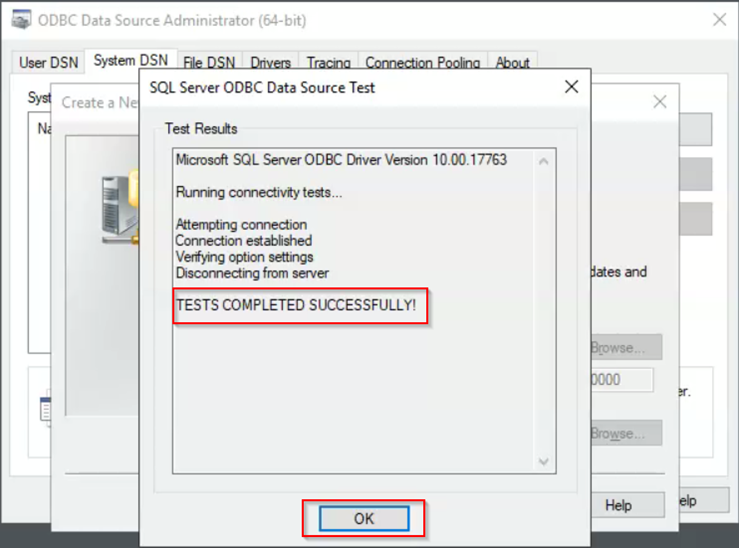
If everything was entered correctly, you should see the following screen. You can simply click on OK to finish the process. These are the steps to create an ODBC connection to your database.
Repeat the same procedure for setting up the 32-bit ODBC Data Connector for office applications.
Log back into the PDM vault and check for errors
For further technical support, please contact Hawk Ridge Systems at 877.266.4469 for the U.S. or 866.587.6803 for Canada and support@hawkridgesys.com.
Comments
Article is closed for comments.