
Problem
This article goes over how to set the Default Values for Search Cards in SOLIDWORKS PDM. Setting default values for Search Cards is a little different from File Cards. In Search Cards, we don’t set the defaults per field on the card. Instead, we can set a default for each variable we are using on the card.
Solution
Follow the steps below to change the Default Values for Search Cards:
- Open the PDM Administration Tool as the Admin User(Windows Start Menu > SOLIDWORKS PDM > Administration)
- Expand the arrow to the left of the Vault
- Expand the arrow to the left of Cards
-
Expand the arrow to the left of Search Cards
- Double-click the desired Search Card to modify it
- Left-click a Field to highlight it in the card and check the variable name in the Properties pane

-
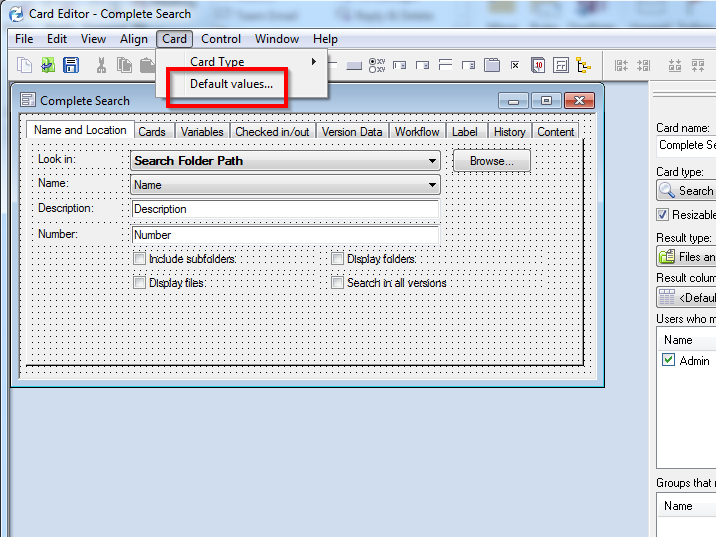
To set the default value, select Card > Default Values
-
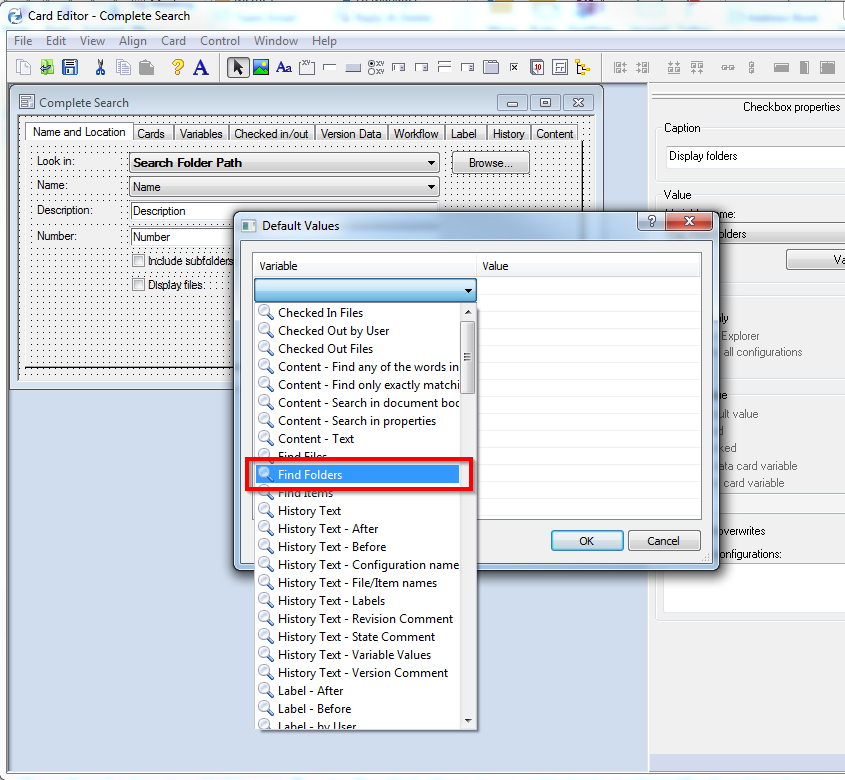
In the Default Values window, click the first cell under the Variable column, and select the desired Variable to set the default value for
-
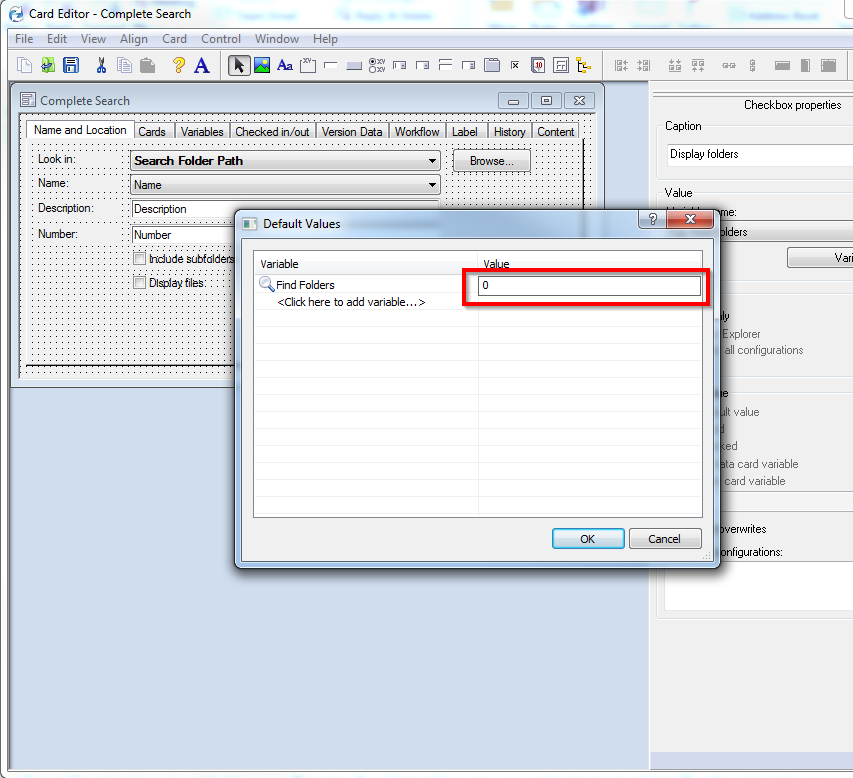
After selecting the variable, click the first cell under the Value column and enter the value to be the default (in this example, a 0 for a checkbox field defaults it to unchecked)
- Click "OK" to close the Default Values window
- Back in the Card Editor, save the card
Users may need to close out of the vault view and browse back in before they see the changes.
For additional support, existing customers can submit a ticket or new customers can contact Hawk Ridge Systems.
Comments
Article is closed for comments.