
Problem
During the initial check-in of any document into SOLIDWORKS PDM, the file type and file path are checked to determine which workflow the file will be placed into. If the file does not qualify for any workflows, users will receive the following error: "The document does not meet the conditions of any workflow."
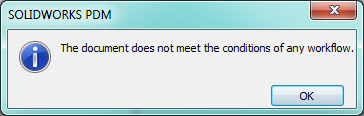
Solution 1: Workflow Conditions
There are typically two reasons why we would see this error. The first is that the Workflow Conditions are not set properly to accept this file type or the folder it's being checked in from. The following article has instructions for setting up the Workflow Conditions: Setting up Workflow Conditions
Solution 2: Permissions
The second most common cause is that the user doesn't have permissions to add files to the initial state of the Workflow the file is trying to be placed in. Below are the instructions to check this permission:
- Open the PDM Administration Tool (Windows Start Menu > SOLIDWORKS PDM > Administration)
- Expand the Vault
- Log in with the Admin account, or another account with full administrative permissions in the vault
- Expand the Workflows section
- Right-click on the Workflow the file should be going into and select Open
- Find the Initial State (indicated by a "page" icon in the lower right of the state)
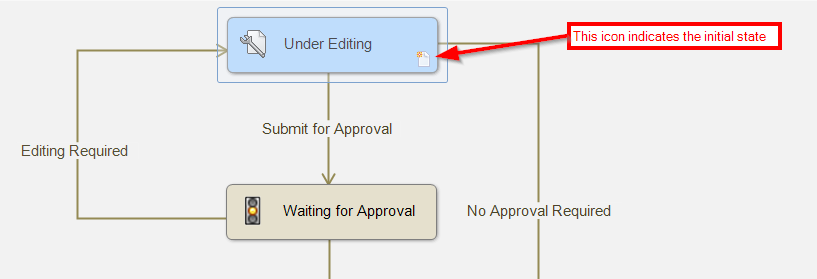
- Click on the 'initial state' to bring up the State Properties
- In the Permissions tab, select the User or Group seeing this error and make sure they have the "Add or rename file" permission selected.
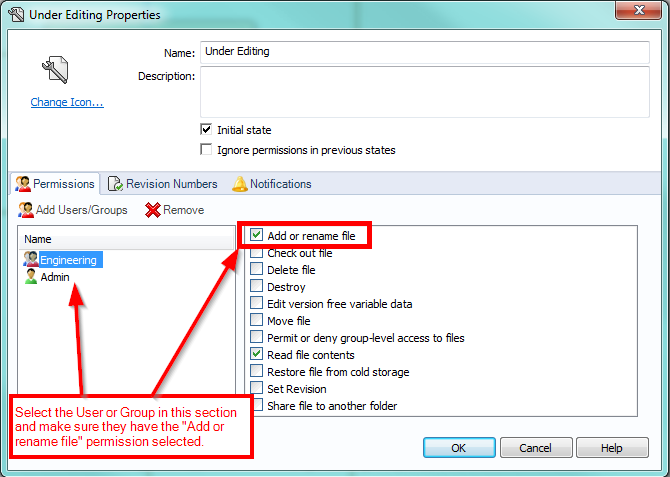
With both the Workflow Conditions and Permissions set properly, this should resolve the problem of checking files into the vault.
For additional support, existing customers can submit a ticket or new customers can contact Hawk Ridge Systems.
Comments
Article is closed for comments.