
Problem
This article walks through the steps needed to fix a blank installation manager after launching the SOLIDWORKS setup process from a full download or standalone installer.
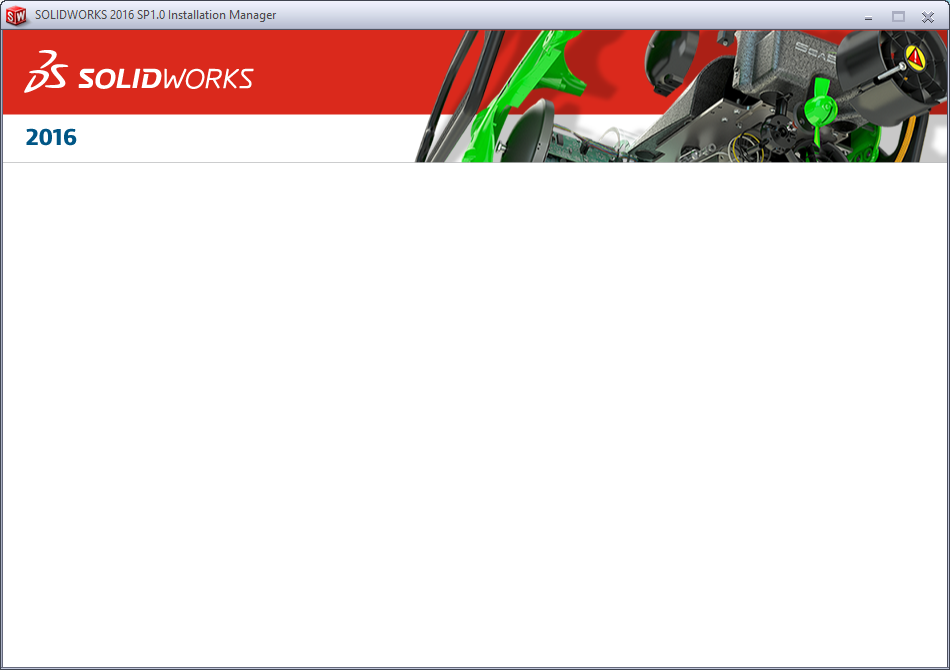
When a ZIP file is downloaded from the internet, Windows can inherently block portions of the file from being extracted, which potentially prevents harmful files from installing. However, there are some cases where the SOLIDWORKS installer is also blocked from fully extracting, resulting in the non-functional blank window that is shown below.
Solution
To resolve this issue, please follow the steps below:
- Navigate to the location of the original SOLIDWORKS ZIP Folder that was downloaded
- Right-click on the ZIP Folder and select "Properties"
- Navigate to the "General" tab
-
Check the box for "Unblock", click "Apply", then click "OK". Note: If the Unblock option is missing, attempt the Solutions in this article: How to Unblock a Single File when the Zipped Folder Unblock Option is Missing – Hawk Ridge Systems

- Right-click on the ZIP Folder to extract it again
- Locate the setup.exe in the extracted folder and right-click on it to select "Run as Administrator" to begin the installation
- If the Blank Installation Window persists, attempt the Solutions in this article: How to Unblock a Single File when the Zipped Folder Unblock Option is Missing – Hawk Ridge Systems
For additional support, existing customers can submit a ticket or new customers can contact Hawk Ridge Systems.
Comments
Article is closed for comments.