
Problem
When importing or exporting a neutral file format, such as a STEP file or Parasolid, the following error may appear:
The default templates are not valid. The problems can be resolved by correctly the default templates under the options dialog. Do you want to continue wth a blank template?
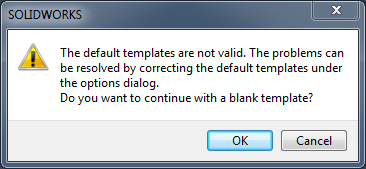
This error indicates that the default templates that SOLIDWORKS has specified in the options do not work. This can happen for a variety of reasons, such as if the default templates are missing from the default template location.
Solution
Follow the steps below to modify System Options to point SOLIDWORKS at the correct template files and set the default templates.
- Open SOLIDWORKS
- Navigate to Tools > Options > File Locations > Document Templates
-
Click the "Add" button to browse to the template folder location, select the folder, and hit "OK"
- Navigate to Tools > Options > Default Templates
-
Click the “…” button next to the default part, assembly, and drawing templates to select a template (even if a file path is already listed there)
-
Select the appropriate template for Part, Assembly, and Drawing templates then click "OK" to confirm the change for each file type
- Once all default templates are set, click "OK" to close the window and confirm the changes
For additional support, existing customers can submit a ticket or new customers can contact Hawk Ridge Systems.
Comments
Article is closed for comments.