
Problem
SOLIDWORKS will often prompt users with a dialog during the opening of a read-only file from SOLIDWORKS PDM. The prompt is: File is not checked out. Would you like to check it out? This article goes over how to disable the prompt if the user does not want to have to click through it.
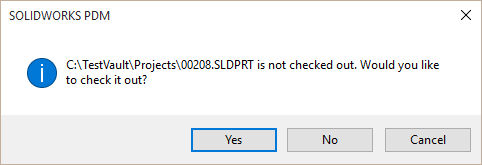
Solution 1: PDM Options in SOLIDWORKS
This option can be changed through the PDM options within SOLIDWORKS with the steps below:
- Open SOLIDWORKS
- For PDM 2016 or newer, navigate to Tools > SOLIDWORKS PDM > Options
- For PDM 2015 or older, navigate to Enterprise PDM > Options
- On the Server tab, disable the option "Prompt to check out file if opened in read-only mode" and click "OK"
Solution 2: PDM Registry Change
When needing to specify this change for a large number of users, it can be useful to perform this change through a registry file change to all user accounts to ensure the setting is the same network-wide.
When going into the Registry Editor, do not modify or delete anything except what is listed below. If you do not feel comfortable performing the steps listed below, please contact Technical Support.
Follow the steps below to change the PDM Registry to disable the prompt:
- We recommend making a backup of the registry following the steps here: How to back up and restore the registry in Windows | Microsoft Support
- Close all programs, including SOLIDWORKS and PDM
- Open Windows Search, search for REGEDIT, and then hit Enter to open the Registry Editor
- Navigate to: HKEY_CURRENT_USER\SOFTWARE\SolidWorks\Applications\PDMWorks Enterprise\PDMSW\Options\ReadOnlyWarning
- Set to a value of 0 to disable the message. Note: Setting this value to 1 will enable the message.
- Open SOLIDWORKS to confirm the prompt is disabled
For additional support, existing customers can submit a ticket or new customers can contact Hawk Ridge Systems.
Comments
Article is closed for comments.