
Problem
Using $PRPSHEET mapping in an annotation to display a model custom property in a drawing title block is a common practice. With SOLIDWORKS PDM (both Standard and Professional), we have the ability to actually move the property from the model to the custom properties of the drawing and into the drawing's data card. This article goes over how to accomplish this.
There are a couple of things to note in order to get this mapping to work:
- The drawing must be saved in SOLIDWORKS, and the SOLIDWORKS PDM add-in must be enabled in SOLIDWORKS. If a value in a model is updated, the drawing data card does not display the updated value until the drawing is opened and resaved.
- The $PRPSHEET mapping is read-only. You cannot modify the model property value by modifying the property value in the drawing data card.
Solution
Below are the steps to set up the property mapping. In this example, we will be mapping a Description property from the model to the drawing.
- Edit or create the variable Description.
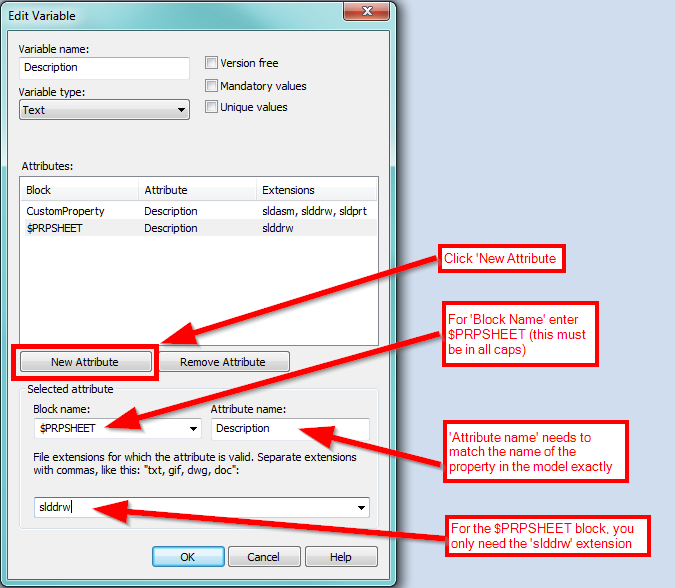
- Click New Attribute.
- Under Selected attribute, specify the attributes for the Description custom property
of the drawing: - For Block name, select CustomProperty.
- For Attribute name, type Description.
-
Type the file extensions to use for the variable mapping, separated by commas. The extension list must include slddrw and can also include other SOLIDWORKS extensions. For example: prt, sldasm, sldprt, slddrw, drw.

- Click New Attribute and specify the attributes for the Description custom property of the model:
- For Block name, type $PRPSHEET. This must be all uppercase.
- For Attribute name, type Description or the name of the model's custom property from which you are copying the value.
-
Type the file extension slddrw.
- Click OK.
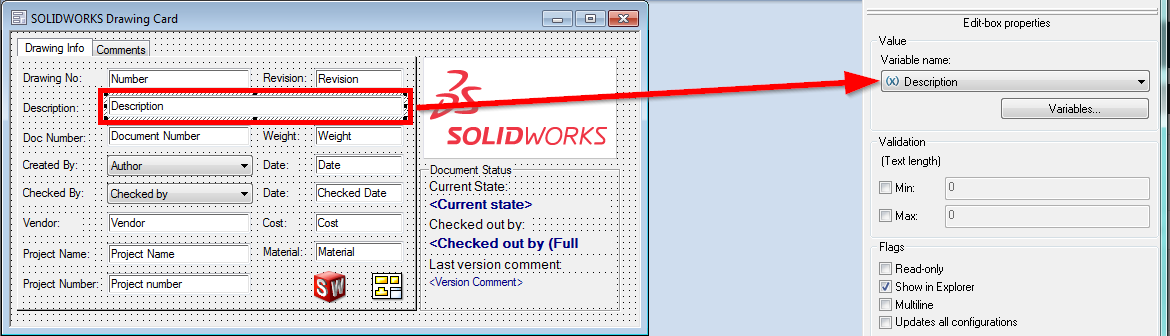
- If you don't already have a Description field on the data card, open the SOLIDWORKS Drawing file card in the Card Editor.
-
Add an edit box and select the Description variable as the Variable name.
- Save the card and close the Card Editor.
Now, when you create a drawing from a model with a Description custom property, it should be copied from the model to both the drawing's custom properties and the drawing's data card.
For additional support, existing customers can submit a ticket or new customers can contact Hawk Ridge Systems.
Comments
Article is closed for comments.