
Problem
When files are first migrated in PDM, file references may still require additional updating. While files may have been checked into the vault and the vault references are correctly saved, files can still reference their initial locations outside of the vault.
There are two different instances when file relations can be updated:
- Before files are initially checked in to the vault
- After files have been initially checked in to the vault
Each method has a different process due to how the file references can be updated.
Solution 1: Before Initial File Check-In
Before an assembly has completed the initial check-in operation, it can be useful to verify, and if needed, update the file references. Follow the steps below to update the references using Update References:
- Select a file that has not completed its initial check-in and go to Tools > Update References.
-
Click the "Find Files" button (folder with magnifying glass icon) to browse for the correct files
-
Choose a folder for PDM to search for the correct files in and click "Next"
- In the "Review files to update" window that comes up, review the files it found, check the "update" boxes to update the references, and click "Finish" to close this window and update references
-
Back in the "Update References" window, click "Update" to apply changes and close the window
Update References allows you to see the existing references, search for files within the vault that match the filename, and select the location of those files if more than one identically named file exists. The Referenced in column will also show you the existing location of the file.
When the file has had its references completely updated, you can safely check in the file and expect the references to be correctly populated in PDM as well as SOLIDWORKS.
Solution 2: After Initial File Check-In
If a file has been checked into PDM, any broken relations can no longer be corrected via Update References. Instead, SOLIDWORKS uses predetermined search routines to locate a file. SOLIDWORKS will first attempt to open a referenced file from the last saved directory of the file. If this file is not found, SOLIDWORKS will revert to its default Search Routine.
This can cause issues if a file is found outside of the vault, rather than in its original directory. If a copy of the file is still found in the original directory outside of PDM, and the last save of the assembly referenced this file, then this file will be selected and used as the referenced document.
To correct this, there are a few options:
- Rename or delete the old files located in the original directory. This will cause SOLIDWORKS to be unable to find the source location and will use the search routine to find the correct file in the vault. This method is faster, but gives less control.
- Instead of breaking the file references and forcing the search routine, use the File > Open dialog in SOLIDWORKS and use the "References…" option to update and specify the exact file you need. From this dialog, you will be able to see all referenced documents and can update the referenced file location manually. This video has an example of this method: How to Fix SOLIDWORKS File References - YouTube
The best way to update these files is through the reference update of the open dialog with the steps below:
- Open SOLIDWORKS
- Go to File > Open
-
Select the file with references to fix, but do not open it, and then click the "References" button
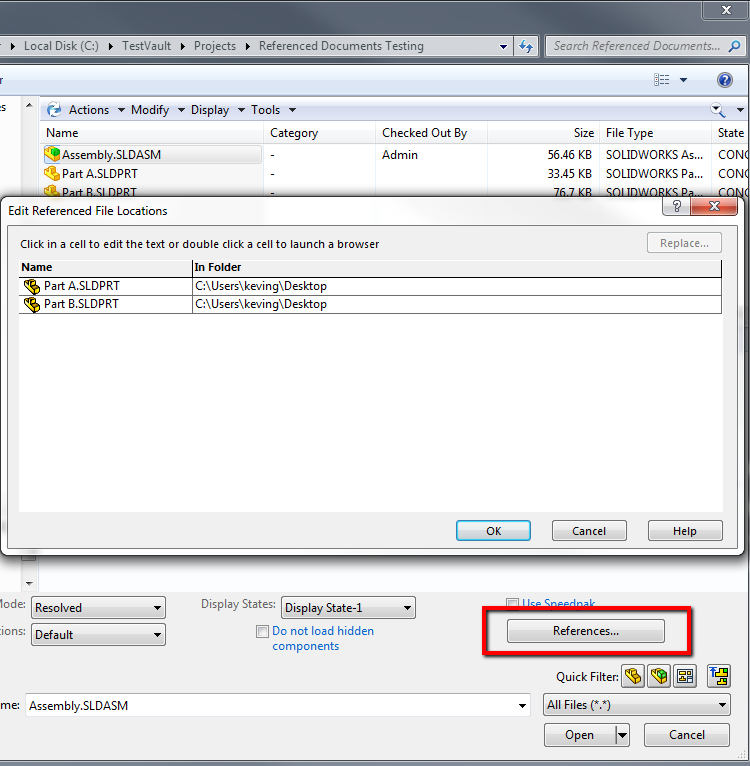
- In the "Edit Reference File Locations" window, click each cell in the "In Folder" column to browse to the correct file
-
Once all file references have been updated, click "OK" to close the Edit Reference File Locations" window and then open the file using the updated references.
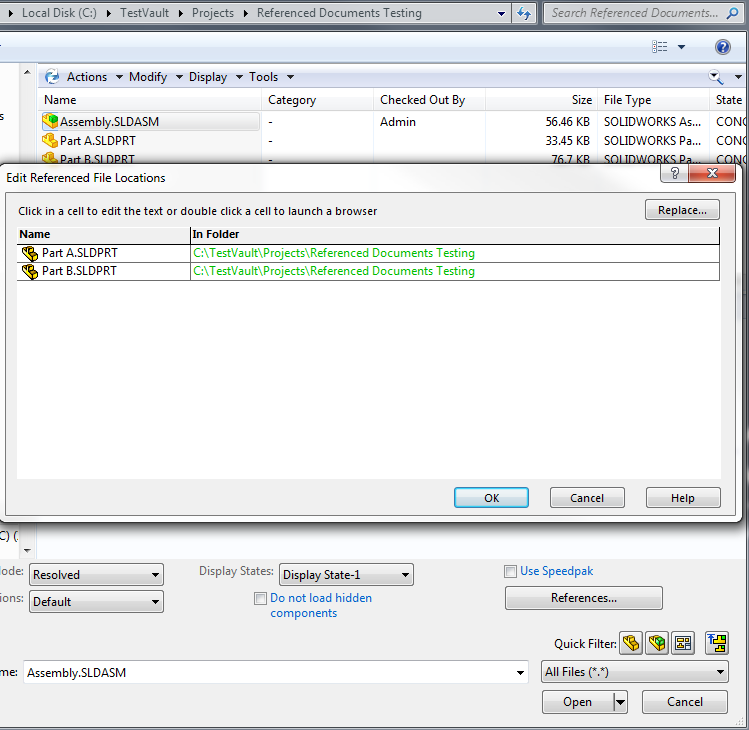
- Save the file, then check it back into the vault, and all future references of the file will correctly reference the vaulted files.
For additional support, existing customers can submit a ticket or new customers can contact Hawk Ridge Systems.
Comments
Article is closed for comments.